This mechanism adds a panel that embeds Web Content into a presentation - allowing users to blend analytical content in Pyramid with third-party web sites that allow their pages to be hosted in iframes. The content can be statically sourced using a fixed URL, or dynamic, updating in response to incoming interactions from Pyramid slicers or visuals. Dynamic behavior is driven by a PQL expression that defines the action to take when a slicer or visual element is selected. This provides a powerful mechanism, to synchronize a user's clicks and selections in Pyramid with the third-party content. For example, the URL can be redirected to a country-specific page in response to a country name being selected from a slicer.
Web Content adds relevant third‑party information from the internet to support and contextualize the analytical insights in your visuals, helping users better understand the slide or access related information.
Configuring Web Content
You can add web content fields to your presentation that either embed a simple frame in your slide (a basic frame that uses a URL to load online data), or that include a PQL Action expression that enables dynamic interactions at runtime. The first step (below) produces the basic content field.
Step 1: Add basic web content
From the Toolbox:
- Do one of the following:
- Click Web Content (yellow arrow below).
- Right-click Web Content > Web Content.
- Drop your Web Content field onto the canvas:
- Click anywhere on the canvas to drop your field at that location.
- Drag your cursor to draw your field on the canvas. (Use this option to customize the size of your field.)
- In the URL window, type your target URL as a string (within "double quotation marks"):
- Click Validate (green arrow above) to test the URL.
- Once a success message opens, click Apply (yellow arrow) to save your function.

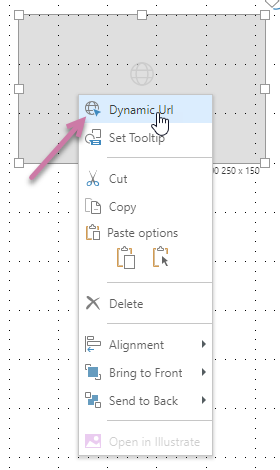
The Dynamic URL panel opens at the bottom of the page.
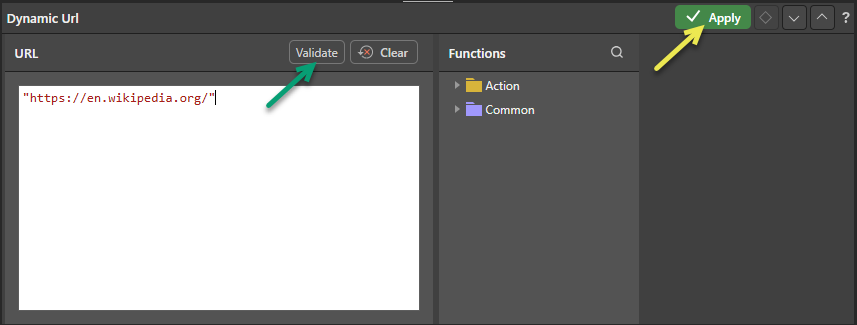
Note: Contain your URL within "double quotation marks" and ensure it includes the URL scheme (http or https). When you make your content dynamic (at a later stage), you will also add the relevant function or functions here.
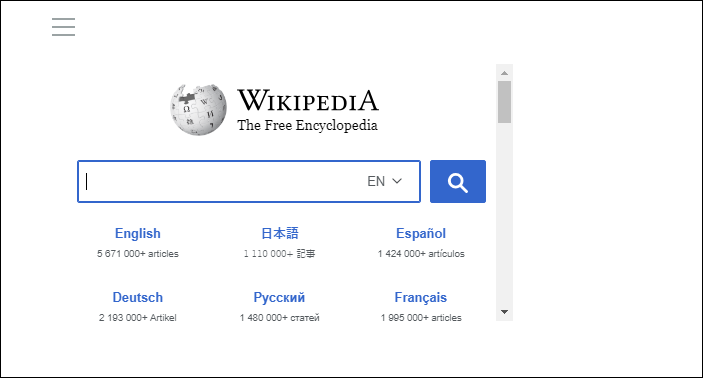
Your URL is saved. When you launch this presentation at runtime, your content is embedded in a frame in the slide. You can check that the correct URL is displayed at runtime by clicking the Run button or F2 on your keyboard for a preview.
Reopening the Dynamic URL panel
Step 2: Format your web field (optional)
Once you have added the field to your canvas, you might want to resize it, move it to a more appropriate location, and so on. As with any other content item, you can use the standard editing options on the right-click menu, the ribbon, and on the canvas to align and distribute fields with other visuals or text fields, and to drag, rotate, and resize them.
- Click here for more information about editing items on your canvas
Step 3: Create your dynamic function
You can incorporate PQL functions into your URL, describing what should happen in response to your users selecting elements from slicers or visuals. Your PQL Expressions are built using Common functions and functions from the PQL Action library.
 Example: Updating the URL with Functions
In the URL window:
- Add the function that drives the interactive behavior to the URL window. This example concatenates the URL and the captions (selected member element name):
- Once you are happy with your function, Validate and Apply it and then Save your presentation.
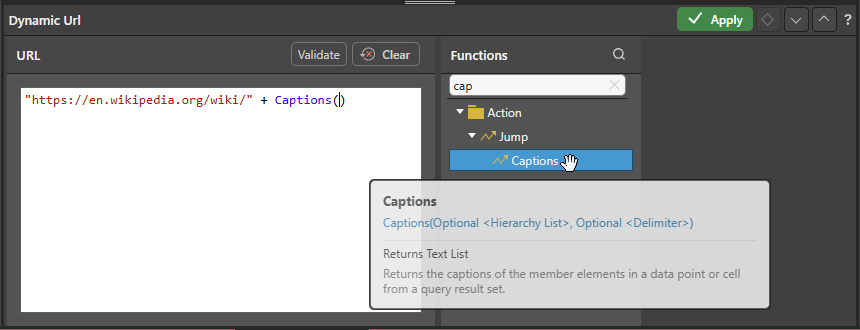
Tip: You can see a description of each available function, including syntax, by hovering your cursor over the item in the Functions tree. You can also double-click the function in the tree to copy it into the URL window.

Step 4: Add an interaction
Although you have defined and validated your PQL function, the interaction between the slicer or visual and the web content field will not work until you have created an Interaction between the slicer or visual and its target.
Note: The interaction must be added after the dynamic function is configured in the web content field (previous step).
- Click here for more information about interactions
Example: Creating Interactions
If Auto Interact (Presentation ribbon) is enabled when you add a new slicer or visual to your canvas, a new interaction is automatically created between the new slicer or visual and your field. This is the default behavior and can be checked using Show Interactions (also selected from the ribbon).
Where there is no interaction between the slicer or visual and the field, select the Interaction Picker in the Toolbox (purple arrow), click the slicer or visual that you want to affect the field, and drag your cursor to the field to create the interaction:
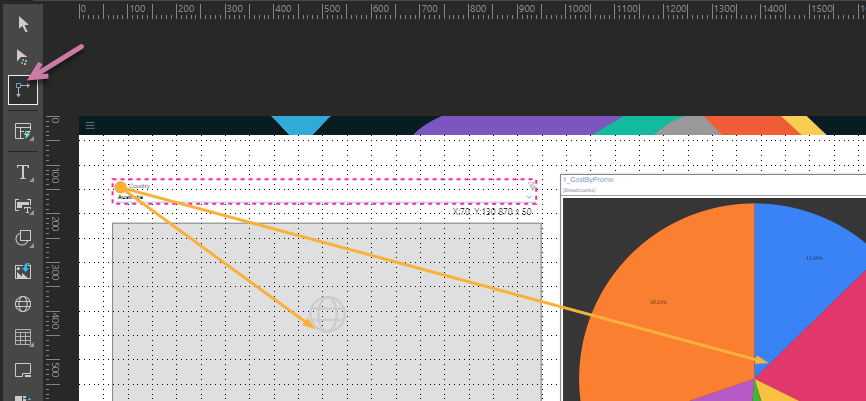
Note: In the preceding example, there are two interactions: (1) between the slicer and the Dynamic Content field and (2) between the slicer and a visual containing a pie chart. This means that selecting a slice at runtime will affect the content of both the field and the visual.
Step 5: Runtime cross-highlighting
You should always check that your changes have the effect you intended. First, open the presentation at runtime by clicking Run or F2. Next, update the options on your slicer or visual to check that the contents of the field respond as expected.
- Click here to learn more about runtime interactivity
Dynamic web content examples
Example 1: Simple slicer selection (Captions())
With Wikipedia set as the URL, and the Captions() function appended to the string (with the optional Hierarchy List and Delimiter removed from the formula):
"https://en.wikipedia.org/wiki/" + Captions()
Add an interaction from the Country slicer to the Web Content field.
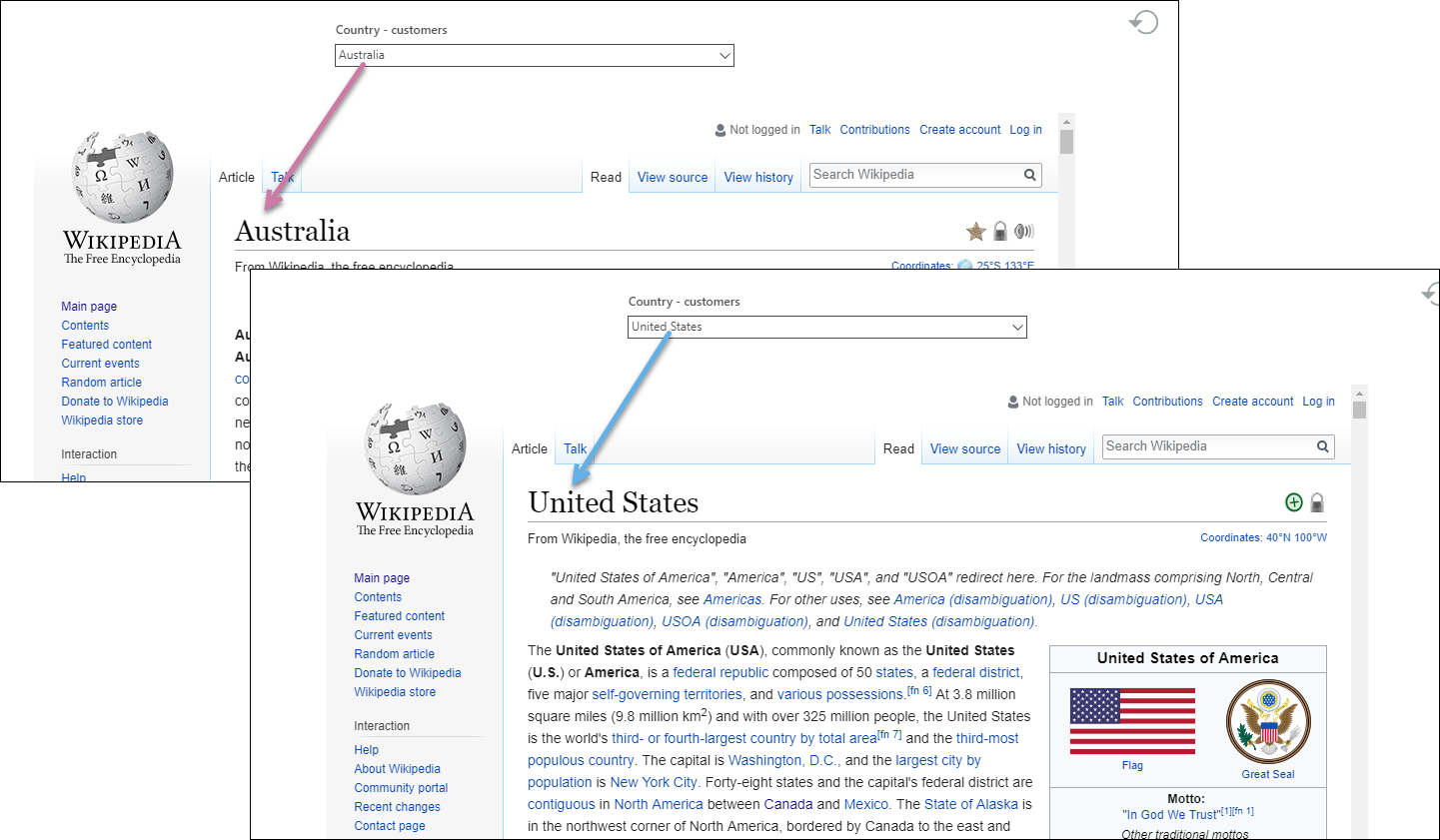
The Wikipedia page in the frame now dynamically changes in response to the selected Country slice. In this example, the Country slicer drives the selection of the Wikipedia pages for Australia and then the United States, building the URLs:
https://en.wikipedia.org/wiki/Australia
https://en.wikipedia.org/wiki/United States
Example 2: Complex select members from a visual (If Statement)
In this example, configure an If statement with the following expression:
If(Contains(Captions(), "Discount"), ("https://en.wikipedia.org/wiki/"+Captions()), "https://en.wikipedia.org/wiki/")
(The expression indicates that, if the selection includes the sub-string Discount, the first URL, the Wikipedia page with the concatenated caption, should be shown in the frame. Otherwise, the Wikipedia home page should be shown.)
Add an interaction from the visual to the Web Content field.
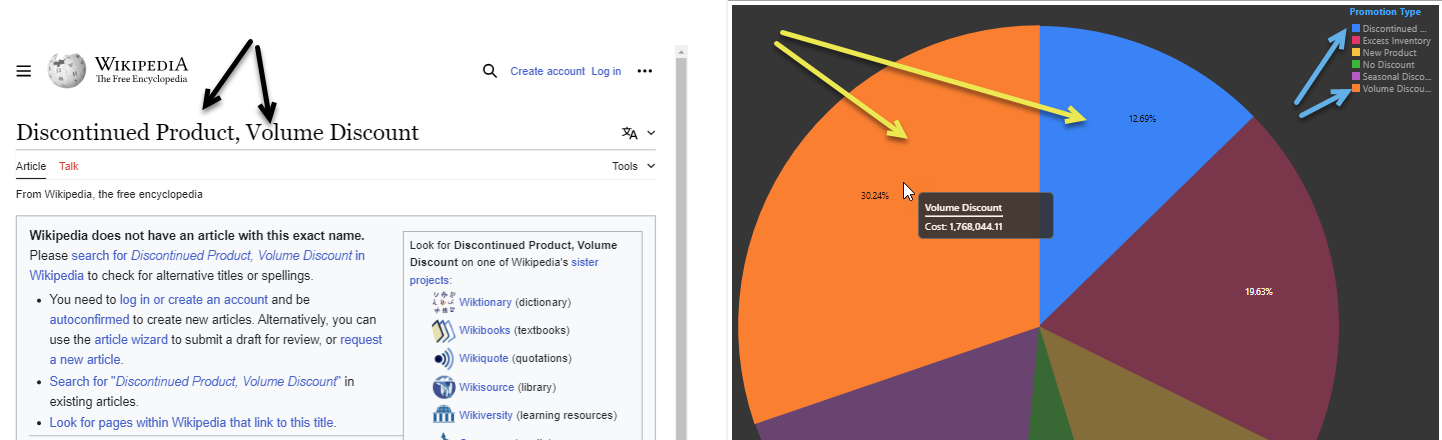
When viewed at runtime, selecting one or more hierarchies that contain the word "Discount" opens the Wikipedia page for the selected item or items. In the following example, the blue and yellow arrows show the selected items in the visual (Discontinued Product and Volume Discount). Making these selections appends these captions to the URL as follows:
https://en.wikipedia.org/wiki/Discontinued Product,Volume Discount
Related information
Third-Party Analytic Content Panels
This function lets users access the analytic catalogs of Tableau and Power BI to embed their external analytic content alongside Pyramid content. Importantly, users can build interactions between the elements and Pyramid so that they can dynamically change both Pyramid and the external content using the same slicer or interactive functionality.
- Click to see how to use the Tableau catalog and embed Tableau content
- Click to see how to use the Power BI catalog and embed Power BI content